

Blog
What Can You Automate in a Small Accounting Firm? The First Five Workflows (Not the Accounting)
Casia, Rosada Automation10 min read
In a small accounting firm, automate the communication around the work, not the accounting itself. The first five worth doing are: replying to and sorting new inquiries, sending engagement letters with reminders until they're signed, requesting documents and chasing only what's missing, telling the preparer when a client is ready, and reminding clients about unpaid invoices. Reviews, advice, and anything that needs judgment stay with your team.
If your accounting software offers bank feeds and categorization rules, turn those on too. This list covers everything around the bookkeeping.
Not sure which one is eating the most time in your firm? Get your free workflow map. About 2 minutes. Free, no call.
The short version:
| Workflow | Trigger | What happens automatically | Where a person steps in | Stops when |
|---|---|---|---|---|
| 1. New inquiry | Form, email, or missed call | Same-day reply, intake form, booking link | Takes the call | Call booked |
| 2. Engagement letter | Scope agreed | E-sign request, then reminders | Approves the letter; follows up after the last reminder | Signed |
| 3. Documents | Letter signed | Item-level request; reminders list only what's missing | Calls after the last reminder | Every item is in |
| 4. Ready for prep | Signed and complete | Status change, preparer notified, client told | Preparer does the work | Handoff logged |
| 5. Unpaid invoice | Due date passes | Friendly scheduled reminders | Handles disputes | Paid |
Why automate the admin, not the accounting?
Because the admin is where the hours leak, and it's the low-risk part. Think high-volume, low-judgment work: the same email, the same reminder, the same "did we get the signed letter?" every season.
The AICPA & CIMA guide to building automations in a small firm gives three simple places to look. Tasks where someone copies data between systems. Emails your team sends over and over, like client follow-ups and meeting reminders. And steps in one system that mean updating another. It also warns that a vague process makes a poor automation. Write the steps down first.
What not to automate:
- Tax advice and tax positions
- Return reviews and anything that needs judgment
- Anything sent under the firm's name that a person hasn't checked
- Sending sensitive documents or ID numbers by text
The first five workflows
Same format for each: the trigger, what's automatic, where a person steps in, and when it stops.
1. New inquiry: how do you reply the same day?
- Trigger: a web form, an email, or a missed call.
- Automatic: a same-day reply with a short intake form and a booking link. Answers land in your CRM or practice software, and the right person is notified.
- Person: reads the answers and takes the call.
- Stops: when the call is booked.
Inquiry reply: Thanks for reaching out to [Firm]. So we can point you to the right person, please answer 4 quick questions here: [form]. Or book a 15-minute call: [link]. Thanks, [Name]
2. Engagement letter: how do you get it signed without chasing?
- Trigger: the scope is agreed.
- Automatic: after a person approves the letter, it goes out for e-signature. Unsigned letters get a reminder on a schedule.
- Person: if it's still unsigned after the last reminder, a named person gets a task to follow up.
- Stops: on signature.
The AICPA guide lists alerts for when engagement letters are signed as a common automation.
Unsigned letter reminder: Hi [First name], a quick reminder that your engagement letter from [Firm] is waiting for your signature: [secure link]. Questions? Just reply.
The full onboarding checklist is a separate guide, coming soon.
3. Documents: how do you chase only what's missing?
- Trigger: the letter is signed.
- Automatic: the client gets an item-level list and a place to upload. Each reminder names only the items still missing, so nobody re-sends what you already have.
- Person: after the last reminder, someone calls.
- Stops: when every item is in.
Missing documents: Hi [First name], thanks for what you've uploaded. We're still missing: [item list]. You can add them here: [portal link].
Uploads go through your secure portal, not text or plain email. A deeper guide on document chasing is coming.
4. Ready for prep: how does the preparer know it's time?
This is the handoff that's easiest to skip.
- Trigger: the letter is signed and the documents are complete.
- Automatic: the status changes to ready for prep, the preparer is assigned and notified, and the client hears what's next.
- Person: the preparer does the work.
- Stops: when the handoff is logged.
To the client: We have everything we need. [Preparer name] is working on your return and will reach out if anything comes up.
Internal handoff: Ready for prep: [Client] · letter signed [date] · docs complete [date] · assigned to [preparer].
5. Unpaid invoice: how do you remind clients without awkward calls?
- Trigger: the due date passes.
- Automatic: friendly reminders on a schedule.
- Person: handles disputes and questions.
- Stops: on payment.
See the unpaid invoice reminders (sample run), built on sample data.
Which one should you automate first?
Pick by how often it happens, what it costs when it slips, and how risky it is to automate.
| Workflow | How often it happens | Cost when it slips | Risk if automated wrong |
|---|---|---|---|
| 1. New inquiry | Medium | Medium | Low |
| 2. Engagement letter | High in season | High | Low |
| 3. Documents | High in season | High | Low to medium |
| 4. Ready for prep | High in season | Medium | Low |
| 5. Unpaid invoice | Medium | Medium | Medium |
For most firms, I'd start with engagement letters or document requests. They repeat every season, eat staff time, and the risk is low. Automate one, watch it for a season, then add the next. Choosing your first automation gets its own post soon.
The workflow, start to finish: new client to ready for prep
Workflows 1 through 4 chain together. The inquiry becomes a booked call, the agreed scope becomes a signed letter, the signature triggers the document request, and complete documents trigger the preparer. Every handoff has a named person, and every reminder has a stop rule.
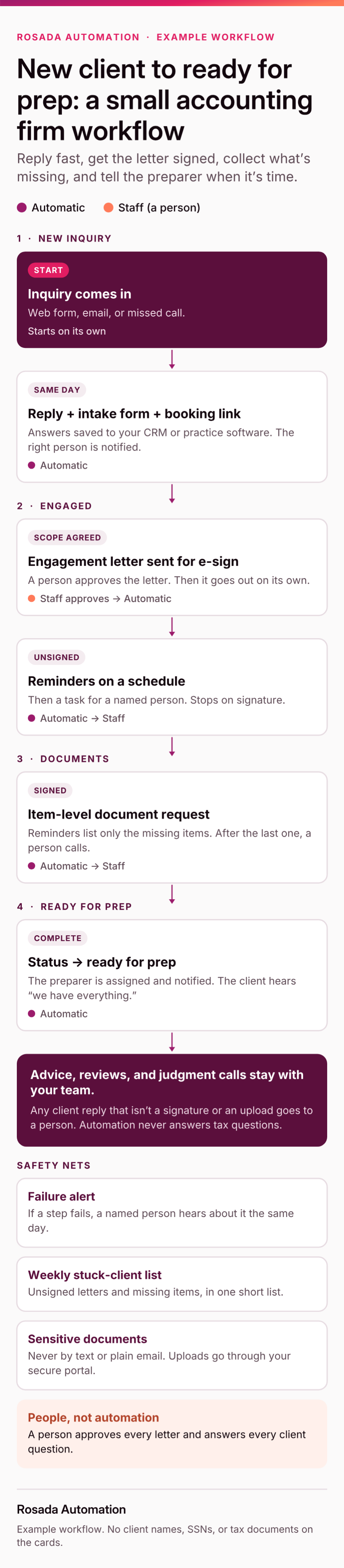
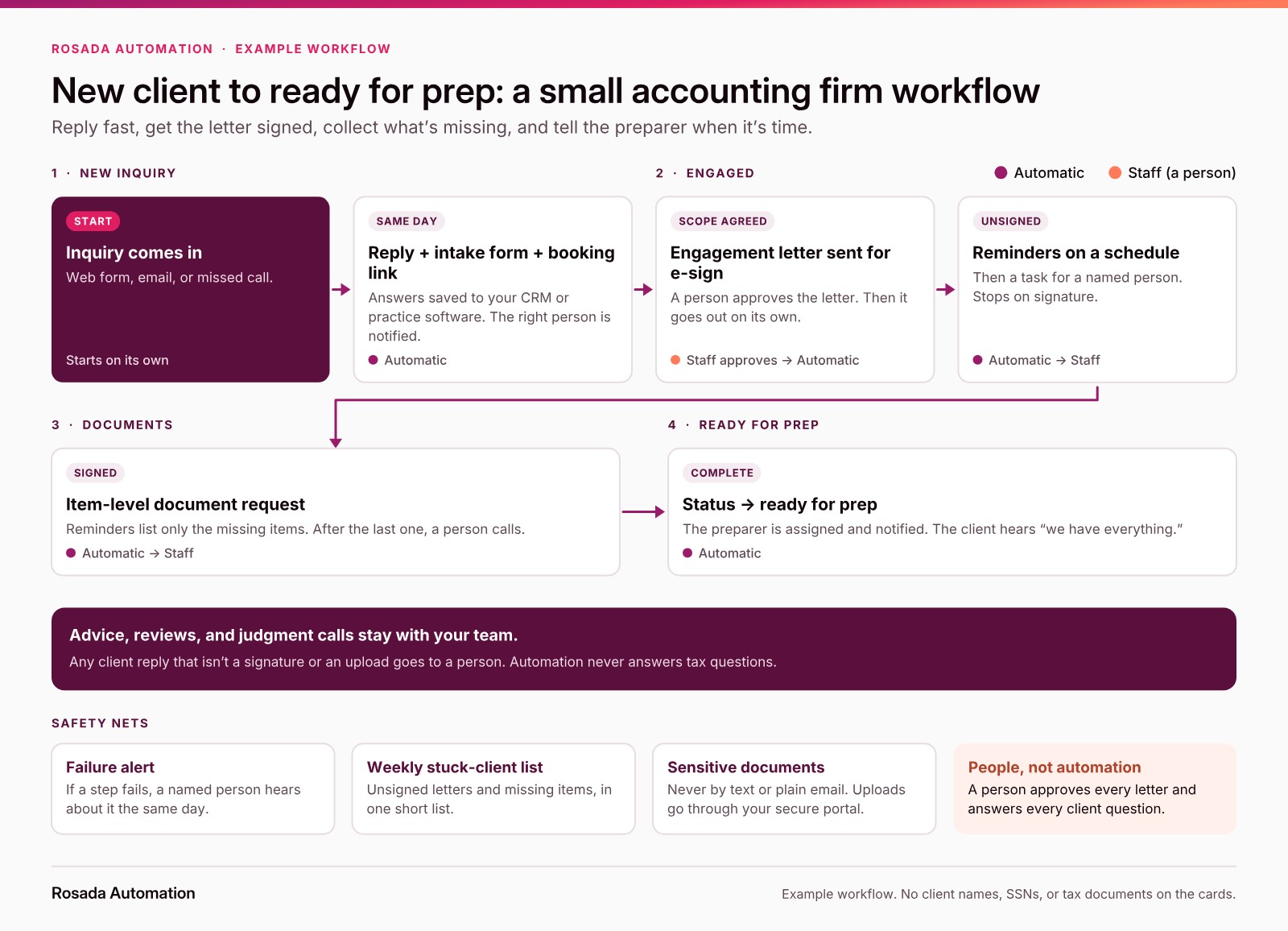
The example workflow at a glance: reply, sign, collect, and hand off to the preparer.
Want this mapped for your firm? The free workflow map shows how a new client moves from inquiry to ready-for-prep today, and where it stalls. About 2 minutes. Free, no call.
Can you build this on the tools you already have?
Usually, yes. Many firms already pay for a practice-management or portal tool that covers some of this. Turn that on first.
An AICPA & CIMA article on small-firm capacity makes the same point: many AI and automation tools are already built into software small firms use every day. It quotes a firm owner's advice to "fix the problem that you have." Look at the logjams in your process before you buy a new tool.
Automation fills the gaps between tools: the inquiry form to the CRM, the CRM to e-sign, e-sign to the portal, the portal to the preparer's task list. This is the kind of thing I build, in your accounts.
If you do hire someone, here are the questions to ask before you hire anyone.
How do you keep client data safe while you automate?
This is general information, not legal, tax, or security advice. Check with your own advisors.
- You need a written plan. The IRS says the FTC Safeguards Rule covers professional tax preparers, and that tax return preparers must create and put in place security plans to protect client data. The IRS calls a written information security plan (WISP) "required by law." IRS Publication 5708 is a sample WISP for tax and accounting practices.
- Your automation tools belong in that plan. Publication 4557 says to pick service providers that can maintain appropriate safeguards, require it in the contract, and oversee how they handle client information. Every tool that touches client data counts.
- Use multi-factor authentication. IRS Publication 4557 says to require it for anyone accessing customer information on your system, regardless of firm size.
- Keep sensitive documents out of text and plain email. The IRS sample WISP sets a policy that client personal information isn't emailed in plain text unless it's encrypted or password-protected.
My own rule on top of that: don't put SSNs or full tax documents into a texting tool or an AI prompt. Reminders don't need them.
When you don't need this
If you're a solo practitioner with a handful of clients, a good checklist may be enough. Same if your portal already does all five and your staff actually use it.
Start with a map
See a new client onboarding example run (sample data, not a client).
FAQ
What can I automate in a small accounting firm?
The communication around the work: replying to new inquiries, sending engagement letters and reminders, requesting and chasing missing documents, notifying the preparer when a client is ready, and reminding clients about unpaid invoices. Advice, reviews, and judgment calls stay with people.
What's the best first automation for an accounting firm?
Usually engagement-letter reminders or document requests, because they repeat every season, eat staff time, and are low-risk to automate. Pick the one that slips most often in your firm, and automate that single workflow before adding others.
Can I automate client onboarding without buying a new portal?
Often, yes. Many firms can connect the tools they already use (a form, e-signature, file storage or a portal, and email) so each step triggers the next. If you already pay for a practice-management tool, turn on its built-in features first.
Should an accounting firm use AI for client communication?
Use it carefully, if at all. Routine reminders don't need AI. If you use AI, keep it to drafting that a person reviews, and never put SSNs or full tax documents into an AI tool unless it's covered by your security plan.
Is it safe to automate tasks that touch client tax data?
It can be, if the tools are part of your written information security plan, use multi-factor authentication, and only handle the data they need. The IRS says tax professionals are required to have a written security plan. This is general information, not legal advice.
What shouldn't an accounting firm automate?
Tax advice, return reviews, positions that need judgment, and anything sent under the firm's name that a person hasn't checked. Also avoid sending sensitive documents or ID numbers by text or regular email.
Sources
- IRS Publication 4557, "Safeguarding Taxpayer Data": https://www.irs.gov/pub/irs-pdf/p4557.pdf
- IRS Publication 5708, "Creating a Written Information Security Plan for your Tax & Accounting Practice": https://www.irs.gov/pub/irs-pdf/p5708.pdf
- IRS Tax Tip 2026-49, "Written Information Security Plans are essential for tax pros" (June 16, 2026): https://www.irs.gov/newsroom/written-information-security-plans-are-essential-for-tax-pros
- AICPA & CIMA, "How to build automations in your small firm" (December 3, 2024): https://www.aicpa-cima.com/professional-insights/article/how-to-build-automations-in-your-small-firm
- AICPA & CIMA, "Beyond Email: Using AI and automation to enhance capacity" (February 11, 2026): https://www.aicpa-cima.com/resources/article/beyond-email-using-ai-and-automation-to-enhance-capacity
- Rosada Automation, "Unpaid invoice reminders" (example run with sample data): https://rosadaautomation.com/automations/unpaid-invoice-reminders
- Rosada Automation, "New client onboarding" (example run with sample data): https://rosadaautomation.com/automations/new-client-onboarding
Casia